How to Add Art to Frame TV with Simple Steps and Best Display Tips
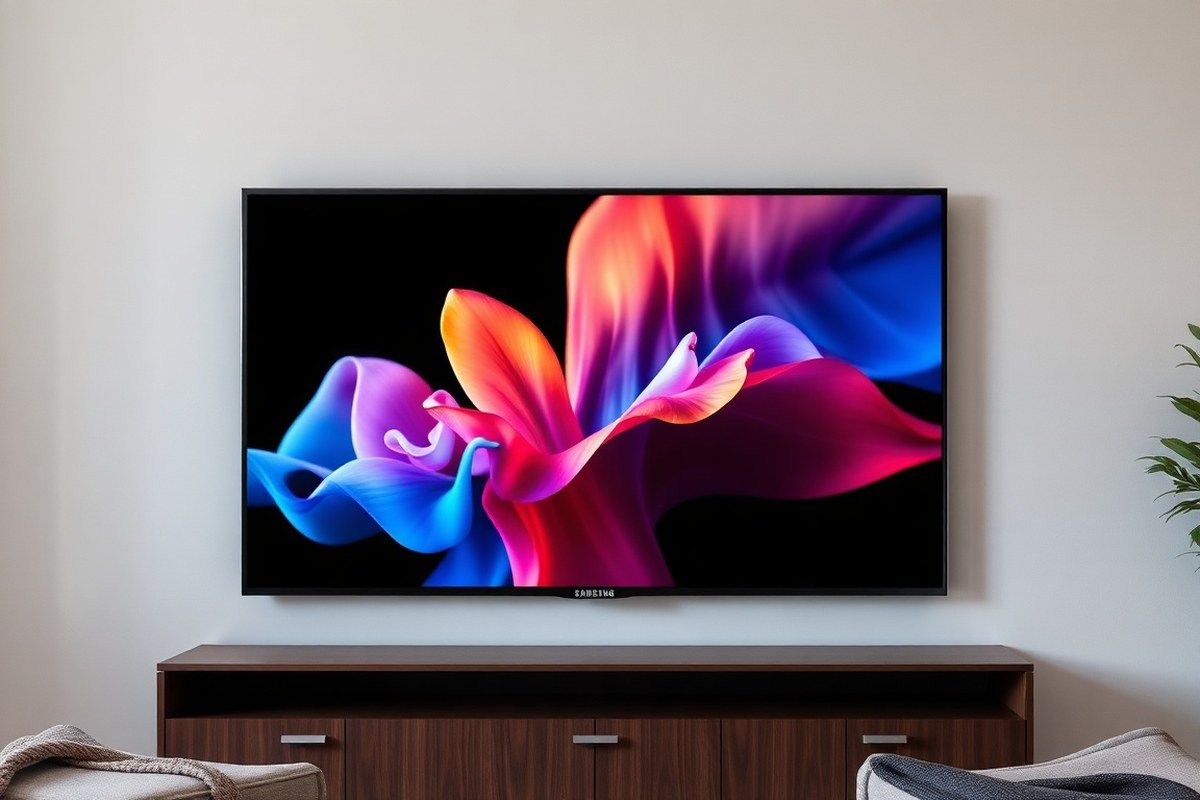
Learning How to add art to Frame TV starts with selecting high-resolution images of at least 3840 pixels wide to ensure sharp display. Upload your art through the SmartThings app for easy management and customization. Begin by choosing digital artwork that matches the TV’s 3840 x 2160 pixel display for best results.
Key Takeaways
- Ensure your art files are exactly 3840 x 2160 pixels to access all mat options on the Frame TV.
- Use the SmartThings app to upload up to three art pieces and create custom mattes for framing.
- Select high-resolution digital artwork from free public domain collections or buy pieces for $2 to $6 each.
- Adjust settings to turn off captions, clocks, and Alexa hints for an uninterrupted art display.
- Apply the slim-fit wall mount to make the Frame TV sit flush against the wall, improving the picture frame look.
- Upgrade your TV’s frame cheaply by swapping the default black plastic border for a custom color like gold.
How to Upload Art to Your Samsung Frame TV
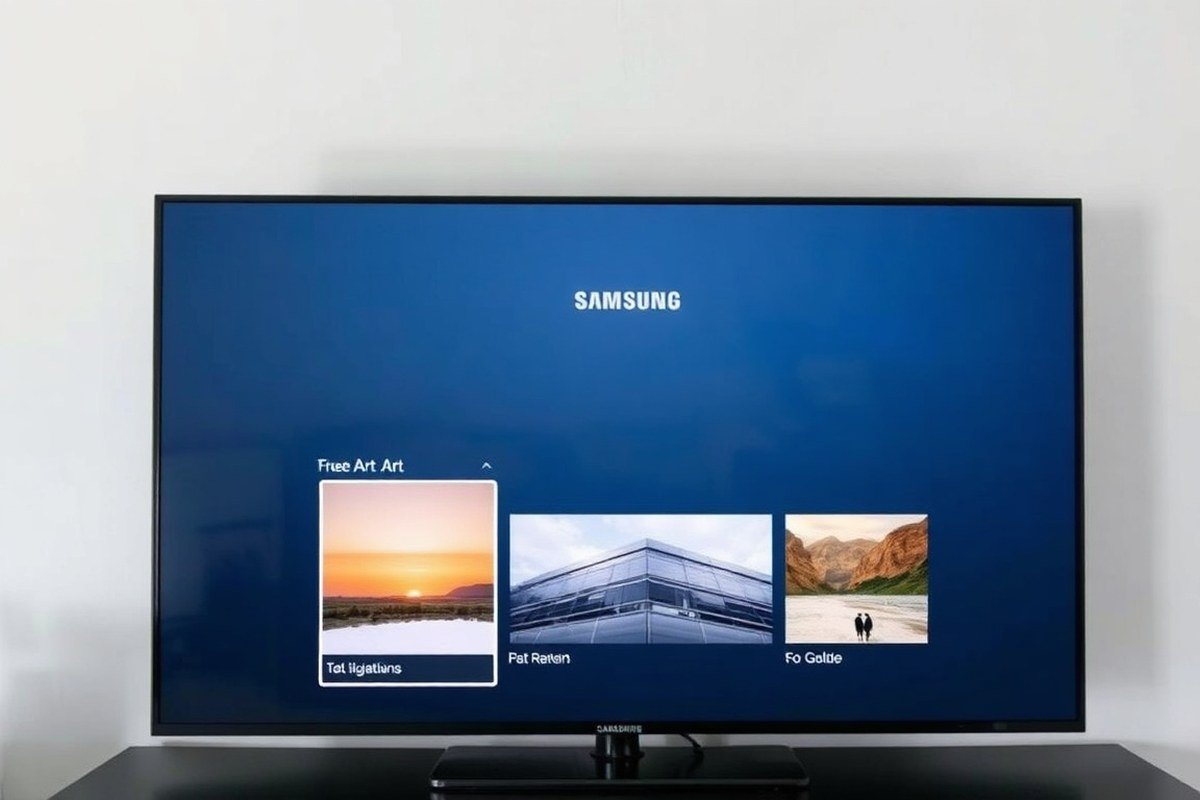
Uploading art to your Samsung Frame TV lets you personalize your display with your favorite digital images or custom artwork. Two primary methods are available: using the Samsung SmartThings app and transferring files via USB. Each has benefits depending on your setup and preferences.
The SmartThings app is the most convenient way to add art directly from your phone. It connects wirelessly to your Frame TV and lets you browse and upload images without extra devices. You must have the app installed on your smartphone and be signed into the same Samsung account as your TV.
Alternatively, USB transfer allows you to upload images from a computer or external drive. This method is useful if you have large files or prefer not to use your phone. You’ll need a USB flash drive formatted in FAT32 or NTFS.
- Open the SmartThings app on your phone and select your Samsung Frame TV from the device list.
- Tap Art Mode then scroll down and select Add Your Photos + to start uploading your digital art.
- Choose the images stored on your phone that you want to display, then confirm to upload them to your Frame TV’s art library.
- To upload via USB, save the properly formatted art files onto a USB flash drive from your computer.
- Insert the USB into the Frame TV’s USB port and open Art Mode on the TV remote.
- Select Add Your Photos + on the TV screen, then choose to import from the USB drive instead of the app.
- Pick the images from the USB to copy them to your TV’s internal gallery.
Using the app enables easy cropping and wireless uploads but limits some mat options. USB transfers let you keep full image resolution and more framing choices but require manual file management. Both methods are free aside from your existing devices and can showcase any digital art that fits the display resolution.
How to Resize and Format Art for Perfect Frame TV Display
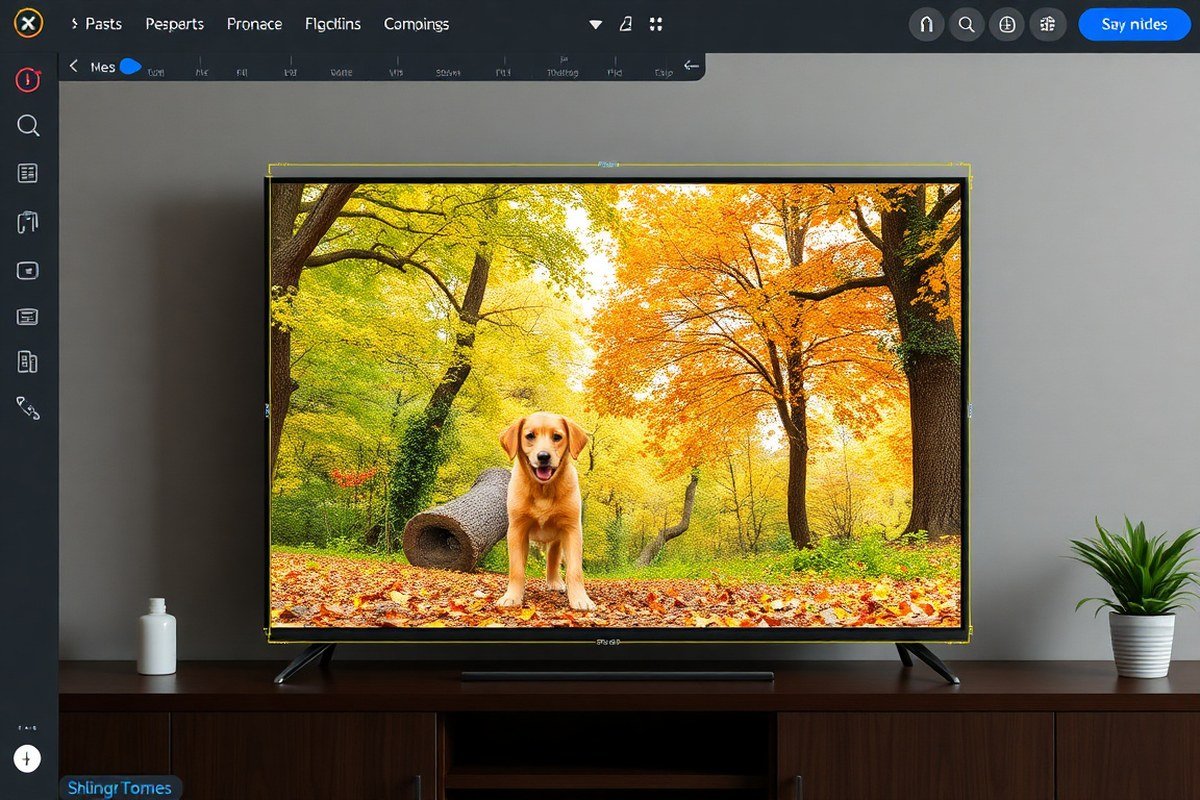
For the best display on your Samsung Frame TV, your digital art should meet the exact resolution of 3840 pixels wide by 2160 pixels tall. This matches the 16:9 aspect ratio of the TV screen and ensures your art fits perfectly without distortion or added borders. Using a file with these dimensions prevents unwanted cropping or stretching that can degrade the image quality and interfere with your TV’s built-in mat options.
Most common file formats like JPEG, PNG, or BMP work well, but sticking to JPEG files often offers a good balance of quality and file size. Avoid very small images or those with resolutions below 3840 x 2160 pixels because when enlarged, they may appear blurry or pixelated on your large screen, which diminishes the realistic art effect you want.
To resize images correctly, use tools that can set the exact pixel dimensions and crop according to the 16:9 ratio. On iPhone, the Photos app lets you crop with a preset 16:9 aspect option, which helps streamline the process. Online tools like the free Deco TV Frames Art Resizing Tool can automatically resize your artwork without needing advanced photo editing skills.
- Check your image resolution and ensure it is exactly 3840 x 2160 pixels.
- Crop to a 16:9 aspect ratio to avoid distortion.
- Use JPEG format for a good balance of quality and file size.
- Avoid enlarging small images to prevent pixelation and unrealistic textures.
- Use dedicated resizing tools or apps for accurate size adjustments.
- Save resized images in an easy-to-access folder on your phone or computer.
Failing to prepare your art with the correct resolution or aspect ratio usually triggers the Frame TV to apply automatic mats or resizing that can shift the artwork’s composition. This reduces the immersive gallery experience the Frame TV is designed to offer. Preparing your images properly will help your art display sharp details and true colors as intended by the artist or creator.
Using the SmartThings App to Manage and Customize Art
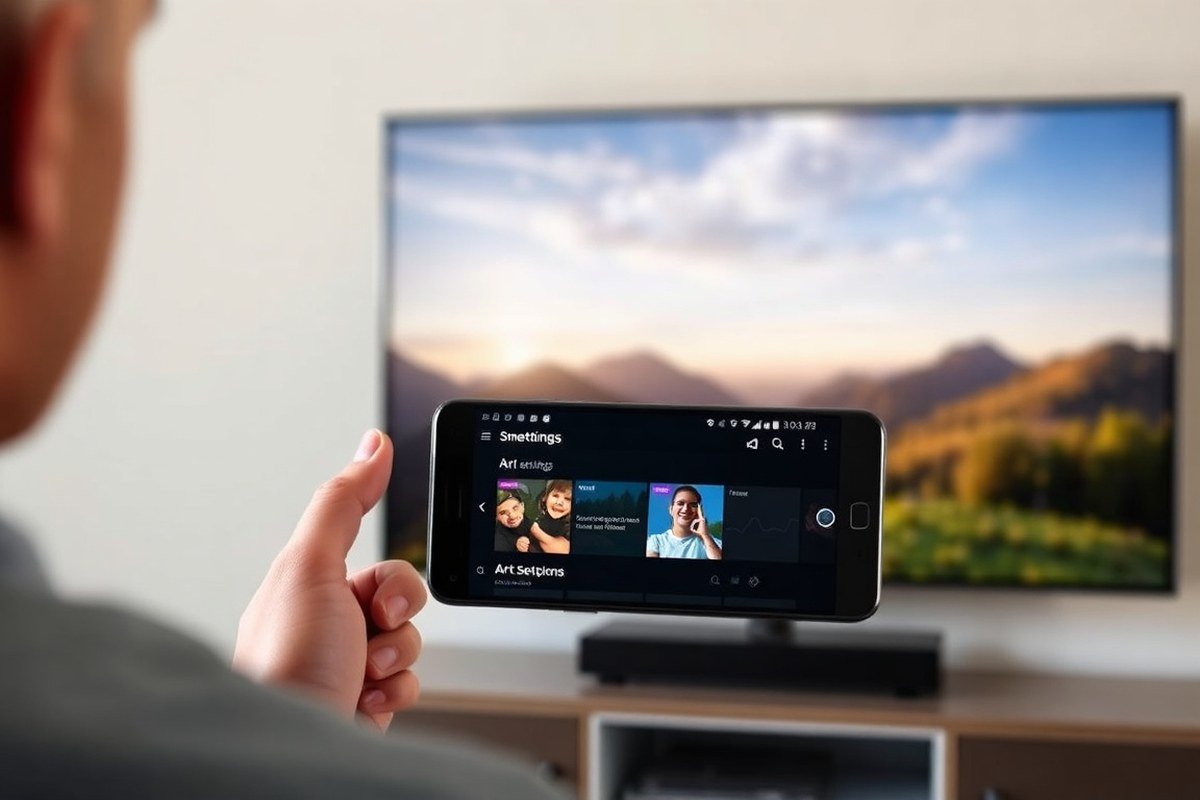
The SmartThings app is the central tool for managing your Frame TV’s art collection and customizing how each piece looks. You can upload photos directly, organize your artwork into collections, add digital mats to improve framing, and adjust display settings for the best visual effect. Controlling these features through the app keeps your TV looking like a genuine piece of framed art and simplifies switching images or tweaking settings without needing the TV remote.
To start, the app lets you upload photos from your phone or tablet easily, so you can feature your own images alongside purchased artwork. You can create mats, a digital border around your art that mimics a physical frame mat, to improve how the art sits visually on screen. The app also provides brightness and color adjustments, helping your images look natural under different room lighting. Enabling the “art effect” mode on newer Frame TV models unlocks full brightness controls. Also, you can set a sleep timer to turn the TV off automatically when it detects no motion for a set period.
- Open the SmartThings app on your mobile device and select your Frame TV from the list of connected devices.
- Access your collection and upload choices by selecting the Art icon located at the screen’s bottom.
- Choose Upload to add photos from your device’s library; select the images you want and confirm the upload.
- Organize your art by creating collections within the app for easier browsing and quick switching between themes.
- Apply or customize Digital mats by selecting your artwork and adjusting mat size, color, and style to complement the image.
- Access settings for each art piece to adjust brightness, warmth, and color tone, ensuring the display matches room lighting. Remember to enable Art effect mode on newer models for these controls.
- Set a Sleep After timer in art mode to have the TV turn off automatically when no motion is detected for the chosen duration, saving power and screen lifespan.
Where to Find Free and Paid Digital Artwork for Frame TV
Finding High-quality digital artwork for your Frame TV can be done without breaking the bank. For free options, explore public domain collections like the National Gallery of Art, where thousands of vintage works are available for download and personal use. Websites such as the Public Domain Print Shop also curate galleries that make it easier to find appealing pieces. Also, Roku Backdrops offers a vast library of free 4K photographs and art, perfect for your TV’s high resolution display. YouTube can surprisingly serve as a source too; searching for “TV art” there leads to various videos designed for art display, and some paid sellers even provide YouTube links to stream their artwork.
When considering paid options, digital art sellers often provide affordable downloadable files compatible with the Frame TV. Look for platforms specializing in vintage or classic pieces if that style fits your room better. Prices usually range from $10 to $50 per download depending on resolution and licensing. The Heirloom Print Shop is one example of a vendor offering vintage-style digital prints that blend old-world charm with modern display technology. Choose artwork that matches the dimensions of your Frame TV to avoid excessive cropping, horizontal images or vertical images at least 3840 pixels wide work best for sharp, full-screen presentation.
Art style matters to achieve the right look. Landscape paintings, minimalist abstracts, and nature photography tend to complement home decor and the Frame TV’s design. Seasonal art, like autumn-themed pieces, can refresh your room with timely visuals. Make sure to download high-resolution files to prevent pixelation. After gathering your chosen artwork, organize files on your phone or USB drive in a dedicated folder, which simplifies loading images onto your Frame TV for efficient rotation and display.
How to Add or Upgrade Physical Frames for the Frame TV
You can change the frame bezel on your Samsung Frame TV to better suit your room’s style or upgrade the art display look. Samsung offers Magnetic customizable bezels that snap on and off easily without tools. These frames come in different colors like white, black, beige, and wood finishes to match various decors. Prices typically range from $80 to $150 depending on size and style, with options available for popular sizes like 43″, 49″, and 55″.
Installing a premium frame involves aligning the frame’s magnets with the TV’s bezel area and pressing gently until it securely attaches. The magnetic design makes it simple and quick, taking just a few seconds. Ensure your TV is mounted flush against the wall using the included slim-fit wall mount, so the frame sits flat without gaps, maintaining that gallery-style appearance.
Frames do slightly increase the overall thickness of the TV setup. However, since the Frame TV already mounts very close to the wall, this minimal added depth rarely affects wall mounting or how the TV fits in tight spaces. Confirm compatibility by choosing frames specifically designed for your exact TV model and size to avoid misalignment or fitting issues.
- Bezel styles include Basic Matte Black, Wood Grain, White, and Beige options
- Frame sizes match common Frame TV screen sizes: 43″, 49″, and 55″ are most common
- Prices range from about $80 for simple frames up to $150 for premium wood finishes
- Installation is magnetic, no tools required, just align and snap on
- Flush wall mount ensures the frame sits tight without gaps
- Replacing or upgrading frames can be done anytime with no impact on TV functions
Choosing the right frame can change your viewing room’s mood by complementing the art displayed on your TV. Matching the frame material and color to your existing furniture or wall color improve the overall effect. Be mindful that only Samsung’s official frames guarantee smooth fit and flush mounting. Non-official frames may sit unevenly or cause unwanted gaps behind the TV and frame.
Optimizing Art Display Settings for Best Visual Impact
Adjusting your Samsung Frame TV’s display settings can significantly improve how your digital art looks. Lowering brightness helps mimic the soft glow of traditional paintings rather than harsh screen light. Disabling overlays like captions, date, or notifications removes distractions for a clean art display. The Art Mode already uses an ambient light sensor to adapt brightness to your room, but setting this manually can fine-tune the effect. Follow these steps to set brightness, disable overlays, and optimize your Frame TV art presentation for different lighting conditions, whether in a dim bedroom or a bright living room.
- Open the Settings menu: Press the Home button on your remote and navigate to Settings > General > External Device Manager > Accessibility, then turn off Smart Captions to remove any text overlays.
- Disable date and clock overlays: Go to Settings > General > System Manager > Time > Date and Clock Display and toggle off these options so no time or date appears over the art.
- Set brightness manually: In Art Mode, access Art Settings from the main menu. Adjust brightness to about 30-40% in well-lit rooms; lower it to around 20% or less in darker environments to avoid glare and maintain a soft appearance.
- Check the ambient light sensor: Ensure Ambient Light Detection is ON (Settings > General > Eco Solution > Ambient Light Detection). This lets the TV automatically adjust brightness throughout the day for natural viewing.
- Adjust color tone: In Art Settings, set the color temperature to “Warm” or “Normal” to keep colors true to original artwork and avoid oversaturation.
- Turn off Alexa hints and motion detection overlays: From Accessibility or Feature Settings, disable these to prevent occasional pop-ups or motion-triggered info while art displays.
- Preview your settings: Display different art pieces after your adjustments and tweak settings if colors look washed out or too intense. The goal is to replicate how framed art reflects light naturally without screen brightness overpowering the room.
Troubleshooting Common Issues When Adding Art to Frame TV
When artwork won’t upload or display on your Samsung Frame TV, first check your internet connection and ensure the TV is on the same Wi-Fi network as your phone or tablet. Sometimes the Frame TV won’t appear under devices in the SmartThings app due to network glitches. Restarting your router and the TV can resolve this. Check that the image file format is supported when it doesn’t show; JPEG and PNG are preferred. Files not in these formats may fail to upload or display correctly.
Incorrect cropping or issues with the mat option often happen because the image resolution is not exactly 3840×2160 pixels. This size matches the 4K UHD display of the Frame TV and allows you to disable the mat, letting your art fill the full screen without cropping. Your TV will add a mat or crop your photo automatically when your image is bigger or smaller than the screen. Editing your image to meet this exact size fixes most sizing challenges.
- Confirm your image is 3840×2160 pixels for no mat and full-screen display.
- Use JPEG or PNG file formats only to avoid upload failures.
- Restart your TV and router if the TV doesn’t appear under devices in the SmartThings app.
- Check SmartThings app permissions and update to the latest version to prevent syncing issues.
- Ensure “Art Effect” is toggled on to allow better display of your artwork.
- Clear cached data in the app if uploads freeze or fail repeatedly.
- Contact Samsung support if all steps fail or you see persistent error codes.
Following these troubleshooting steps usually solves most problems, saving time and avoiding frustration. Making sure your digital art matches the Frame TV’s resolution and file type requirements ensures it displays crisply and correctly without unexpected mattes or crop marks. Taking basic network and app maintenance actions can also maintain a smooth upload experience for your personalized gallery.
Step-by-Step Action Plan for Adding Art to Your Samsung Frame TV
Follow these clear steps to start displaying beautiful digital art on your Frame TV quickly and effectively.
- Before you begin: Prepare your digital art files by resizing them to match your Frame TV’s resolution for optimal display quality.
- Day 1: Upload your chosen art using the SmartThings app, confirming each piece appears correctly on the TV screen.
- Day 2: Adjust the display settings such as brightness and matte finish within the Art Mode to suit your room’s lighting.
- Week 1: Explore and add digital artwork from free or paid sources directly through the SmartThings Art Store to diversify your collection.
- Week 2: Consider upgrading your physical frame to match your room’s decor and verify it securely attaches to the TV without gaps.
- After 2 weeks: Review your displayed art to check colors and cropping, making adjustments via the app if necessary.
- Ongoing: Troubleshoot any issues by restarting the app or TV, checking Wi-Fi connections, or reviewing file formats if art doesn’t display properly.
Frequently Asked Questions
Can You Add Your Own Photos to the Samsung Frame TV Art Collection?
Yes, you can add your own photos by selecting “Add Your Photos +” in Art Mode and uploading images via the SmartThings app, creating a personalized art album on your Frame TV.
Is There a Limit to How Many Artworks You Can Upload to the Frame TV?
The Frame TV allows you to add multiple artworks, typically grouped in an album, but for smooth navigation, it’s best to keep the number reasonable for quick access and easy browsing.
How Do You Update the Artwork Collection Without Deleting Existing Art?
You can add new pieces anytime through the SmartThings app without removing previous images, maintaining a growing collection for rotating artwork display on your Frame TV.
Does the Frame TV Support Video Art or Only Still Images?
The Frame TV primarily supports still images for Art Mode; video files are not supported for display as artwork in this mode.
Can You Schedule Different Artworks to Display at Specific Times on the Frame TV?
Yes, using the Sleep After setting and Art Mode timers, you can control when the Frame TV displays art or switches off, but detailed scheduling by time of day is limited.
Key Points to Remember
Adding art to your Samsung Frame TV can transform your living space with personal style and dynamic displays. Start by uploading your favorite digital images through the SmartThings app and experiment with settings and frame options. Explore the Art Store to find artwork that fits your taste and keep your collection fresh and inspiring.